
Always-On Desk Clock in a Browser Tab
By Mark Fulton · 2026-09-22 · 11 min read
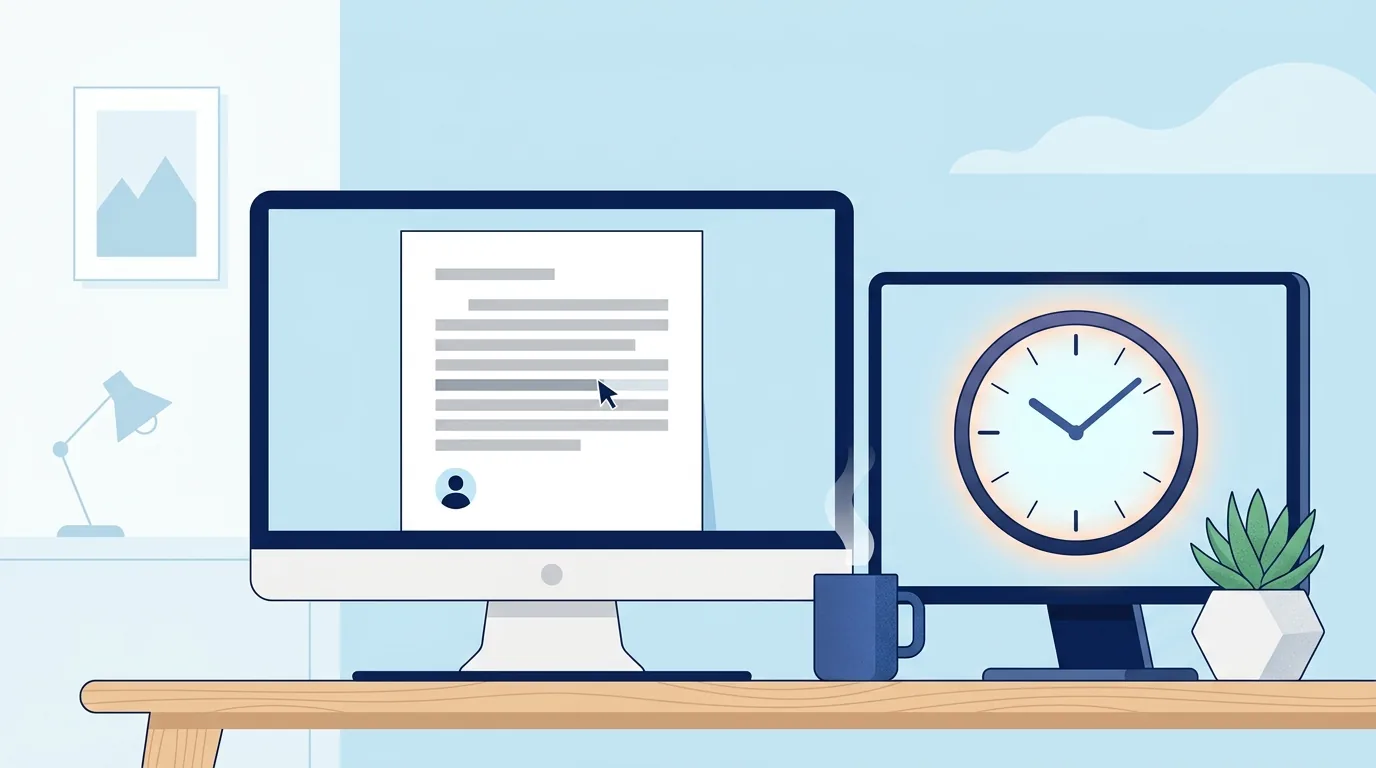
If you want a big clock that stays on screen while you work, a screensaver is the wrong tool: it only appears when the computer is idle, and it disappears the moment you press a key or move the mouse. What you want is a desk clock, and the simplest one is a full screen clock page in a browser tab on your second monitor. It needs no install, works the same on Windows, macOS, Linux and ChromeOS, and keeps showing the time while you type on the other screen. Screensaver apps are still the better choice for one job, taking over an idle screen automatically, and this post says where each one wins.
The two get lumped together because they look identical in a screenshot: big white digits on a dark background. They behave in opposite ways, and the difference only shows up once you try to use one for the job of the other.
What's the difference between a screensaver clock and a desk clock?
A screensaver clock is something your computer shows instead of your work. A desk clock is something you look at while you work.
That sounds like wordplay, but it decides everything else. A screensaver is triggered by inactivity and ended by activity. A desk clock has no trigger at all. It is simply open, the way a wall clock is simply on the wall. You glance at it between two sentences, during a call, or while a build runs, and it is still there when you look back.
A screensaver clock is a lovely thing on an idle machine. Walk away from your desk, the screen fills with a flip clock, and anyone passing can read the time from across the room. The trouble starts when people install one hoping for the desk clock experience, because the moment they sit down and start working, it is gone.
Why does a screensaver vanish when you need it?
Because vanishing on input is what a screensaver is for. Apple's own guide to using a screen saver on your Mac says it starts automatically when the Mac sits idle for the time you choose, and that pressing any key, moving the mouse or touching the trackpad stops it and shows the desktop. Windows works the same way: you set a Wait time in minutes, and the screensaver appears after that much inactivity.
There is a second catch that people run into on multi-monitor setups. A screensaver is tied to the whole computer's idle state, not to one screen. So if you are typing on your main monitor, the machine is not idle, and the screensaver will not appear on your second monitor either, even though nothing is happening there. The screen you most want a clock on, the spare one beside you, is the one a screensaver can never fill while you are working.
None of this is a flaw in any particular app. It is the definition of the category. A flip clock screensaver that stayed up while you typed would not be a screensaver any more.
What does a browser tab do better?
A clock page in a browser tab has no idle trigger, so it simply stays. Put it on the second monitor, go full screen, and it keeps showing the time no matter what you do on the main screen. Here is what that buys you in practice:
- Nothing to install. Useful on a work laptop where you cannot add software, on a borrowed machine, or on a Chromebook.
- Every platform at once. The same page works on Windows, macOS, Linux and ChromeOS, and on the old tablet you might prop up next to your keyboard.
- It survives glances and clicks. Clicking into another window on your main monitor does not dismiss it.
- The screen stays awake. Browsers that support the Screen Wake Lock API let a page keep the display from dimming, turning off or locking while that page is visible.
That last point comes with a condition worth knowing. MDN's documentation is explicit that a wake lock can only be held by a visible document, and that the browser releases it if the page is hidden, if the battery is low, or if power saving settings refuse it. A clock sitting full screen on its own monitor is visible. A clock tab you minimized, or left behind another tab in the same window, is not, and it loses the lock until you bring it back.
Our digital clock is built for exactly this. It requests a wake lock while the page is open and visible, re-requests it when you come back to the tab, and fails quietly on browsers that don't support it. Press F or use the Fullscreen button to fill the screen, and Escape or F again to leave. The zoom controls set the digit size independently of full screen, and the setting is remembered. There is a Hide controls button that strips the page down to the digits for a clean face on a spare monitor; click anywhere on the clock to bring the controls back. Seconds and the date toggle on and off, you can switch between 12 and 24 hour time, and the tab title shows the current time too, so even a backgrounded tab tells you the time from the tab bar.
The display is recalculated from your system clock on every tick rather than counted up, so it cannot drift behind however long the tab stays open. If you want the details on how browsers treat hidden pages, we covered that in whether online timers keep running in background tabs.
What do native apps still do better?
Credit where it is due. There are things a browser tab does not do, and if you need them, a native app is the right answer.
True idle takeover. A screensaver starts on its own. Walk away and it appears; a browser tab has to be opened by you. If the point is a clock that shows up automatically whenever the machine is unattended, that is a screensaver's job and it does it well.
Starting from nothing, fully offline. A browser page has to load once. Once our clock is open it keeps time without a connection, since nothing is fetched to tell the time, but opening it fresh needs the network. An installed screensaver or app has no such step.
Lock screen presence on phones. Phone makers build always-on lock screen clocks into the OS. No web page can put itself on your lock screen.
Fliqlo is the example most people know, and its current listing is worth reading before you install anything. As of September 2026, its site lists the macOS and Windows screensavers as free, with the Mac version requiring macOS 14 or later (an older build is kept for earlier versions) and the Windows version requiring Windows 11. The iPhone and iPad app is listed at $0.99. The same page is candid about the limits we described above: on iOS and iPadOS the app cannot act as a screensaver or replace the Lock Screen, and it keeps Auto-Lock off only while it is open in the foreground. That is honest documentation, and it matches the pattern. The screensaver version is for idle screens; the app version is effectively a desk clock you have installed.
How do the four options compare?
| Browser tab (full screen) | Screensaver clock | Native clock app | Physical desk clock | |
|---|---|---|---|---|
| Install cost | None | Download and install per computer | Install from an app store per device | Buy one, find a spot on the desk |
| Cross-platform | Any device with a modern browser | Per OS; a separate build for each | Per OS; phone apps are usually one platform | Not applicable |
| Stays visible while you work | Yes, on its own monitor | No, ends on any key or mouse input | Yes, while the app is in front | Yes, always |
| Offline | Keeps running once loaded; opening it needs a connection | Yes | Yes | Yes |
| Burn-in risk | Depends on the monitor type and how long it runs | Lower, because it only runs when idle and many animate | Depends on the monitor and the app | None |
| Keeps the screen awake | Yes, where the browser supports wake lock and the page is visible | Not its job; it runs until the display sleeps | Many do while open | Not applicable |
If you only need the time visible while you work and you have a spare monitor, the browser tab wins on effort. If you want something that appears on its own when you leave, a screensaver wins. If you would rather not give up a screen at all, a physical clock on the desk is the honest answer.
How do you avoid burn-in on an always-on display?
Start by knowing which kind of panel you have. Microsoft's guide to configuring a screen saver in Windows makes the distinction well: screensavers were originally designed to protect CRT monitors, modern LCD and LED monitors are less susceptible to burn-in, and on OLED displays a screensaver helps by making sure static images are not shown for long stretches.
So an ordinary LCD monitor showing a clock all day is not something to lose sleep over. An OLED monitor is where to be careful, because a clock is, by design, mostly static. The minute and hour digits move slowly and the colon never moves at all. Our clock does not shift its digits around the screen, so on an OLED panel the protection has to come from how you use it:
- Turn it off when you leave. Close the tab or let the monitor sleep at the end of the day. A desk clock does not need to run overnight.
- Use the monitor's own protection. Many OLED monitors have built-in pixel shift and panel refresh routines. Leave them switched on.
- Keep brightness modest. A second-monitor clock does not need to be bright to be readable from your chair.
- Use a dark background. The free OLED dark theme on the digital clock puts light digits on pure black, which lights far fewer pixels than a photo backdrop.
If you want the dimmest possible face, for a spare screen in a dark room, the night clock is the version built for that: dark background, muted digits, and the same wake lock.
What's the best setup for a second monitor?
Here is the setup, start to finish, the way we would run it on a work desk:
- Extend, don't mirror. In your display settings, make sure the second monitor extends your desktop rather than duplicating it, so the clock gets a screen of its own.
- Open the clock in its own window. Open the digital clock in a new browser window, not a tab in your main window, and drag that window onto the second monitor. A separate window means switching tabs in your main browser never hides it.
- Go full screen on that monitor. Press F. Then press Hide controls so only the time is left.
- Size the digits. Use the zoom controls until the time reads comfortably from your chair. The setting sticks for next time.
- Pick seconds or not. Seconds are handy before calls. If the movement pulls your eye while you're writing, switch them off.
- Plug in. On a laptop driving the second monitor, run on the charger, since holding the display awake uses power.
The one thing the page cannot do is keep a hidden window awake. If you minimize it or cover it completely, the browser may treat it as hidden and the wake lock ends. On its own monitor, that should never happen. If your machine still dims, the fix is in the system settings; our guide to keeping the screen awake while a timer runs walks through them per device. And if the spare screen is an old phone or tablet rather than a monitor, the same idea works; see turning an old phone into a bedside clock.
Frequently asked questions
Can a browser tab work as a screensaver?
Not in the automatic sense. A screensaver is started by the operating system after a period of inactivity, and no web page can register itself for that. What a browser tab can do is behave like the screensaver's look without its limits: a full screen clock that stays up while you work, which is usually what people wanted in the first place.
How do I show a big clock on a second monitor?
Open a full screen clock page in its own browser window, drag it to the second monitor, and enter full screen. On our digital clock that is the F key, then Hide controls for a clean face and the zoom buttons to size the digits.
Does an always-on clock burn the screen?
On a typical LCD monitor, burn-in is not a practical concern for normal desk use. On an OLED monitor, any mostly static image shown for long periods carries some risk, and a clock is mostly static. Keep brightness modest, use a black background, leave the monitor's pixel shift features on, and turn the clock off at the end of the day.
Is there a fullscreen clock that works offline?
Yes, in two ways. An installed screensaver or clock app works with no connection at all. A browser clock like ours needs a connection to load the page, but once it is open it keeps showing the correct time with no connection, because it reads your computer's own clock rather than asking a server.