
Turn an Old Phone Into a Bedside Clock
By Mark Fulton · 2026-09-07 · Last verified Sep 7, 2026 · 13 min read
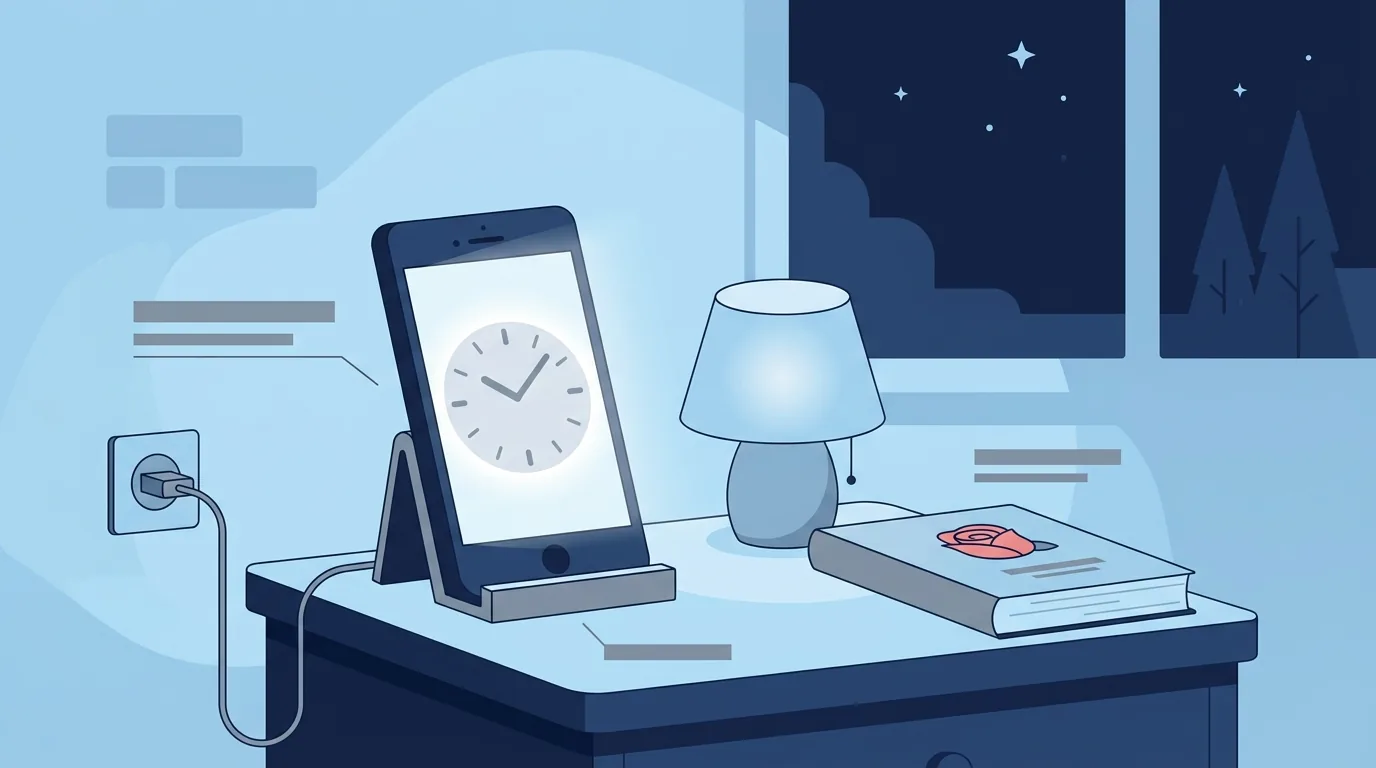
Open a full-screen clock page in the browser that is already on the device, stop the screen from switching itself off, drop the brightness to its floor, and put it on a charger facing the bed. That is the whole job. It takes about four minutes, it installs nothing, and the same four steps work on an Android handset from 2018, an iPad that has been in a drawer for two years, and a laptop you no longer travel with.
The usual advice sends you to an app store to download a clock onto a device that already ships with a browser capable of rendering one. That is a reasonable route if you want alarms with gradual wake, sleep tracking and weather on the same screen. It is a bad route if what you actually want is large legible digits in a dark room, because it means a store account, an install on hardware short of storage, and an app that will eventually push a notification at you at 4am.
The no-install route is a URL in full screen with the auto-lock disabled. It is boring and it is also the only version of this that works identically across every spare device in the house.
What does an old phone need to become a bedside clock?
Less than you would think. The requirements are physical before they are technical.
It needs a screen that still lights up evenly and a battery that is not swollen. A swollen battery is the one hard disqualifier. If the back panel is bowed or the screen is lifting at an edge, that device does not go on a nightstand next to your head, it goes to a recycler. Everything else about an old phone is fine for this job, including a battery that only holds twenty minutes of charge, because the device will be on mains power permanently.
It needs a browser that has been updated at some point in the last few years. Anything running Chrome or Safari from roughly 2020 onward renders a clock page fine. Genuinely ancient stock browsers on Android 5 devices are the edge case, and the fix there is installing a current browser rather than a clock app.
It needs somewhere to sit. A cheap plastic stand, a folded phone case, or a book propped at an angle. Landscape orientation reads better from a pillow because the digits get the long axis of the screen.
And it needs a cable that reaches without stretching across the bed.
That is it. No account, no store, no storage. Here is the whole setup as a checklist, with the three device types side by side, because the differences between them are entirely in where the settings live.
| Step | Android phone or tablet | iPad | Laptop |
|---|---|---|---|
| Full screen | Open the clock page in Chrome, tap Fullscreen on the clock face (or press F on a keyboard) | Open the page in Safari, tap Fullscreen on the clock face | Open the page, then press F, or F11 on Windows and Ctrl+Cmd+F on a Mac |
| Keep the screen awake | The page requests a screen wake lock automatically. If the display still sleeps, enable Developer options (Settings, About phone, tap Build number seven times) then turn on Stay awake while charging | Older iPadOS Safari has no wake lock support, so set Settings, Display & Brightness, Auto-Lock, Never | Wake lock works in current Chrome and Edge. Also set the power plan so the display never sleeps while plugged in |
| Brightness floor | Turn off adaptive brightness, drag the slider to minimum, then add Settings, Display, Extra dim if your version has it | Control Centre slider to minimum, turn off auto-brightness in Settings, Accessibility, Display & Text Size | Hardware brightness keys to minimum, plus Night light on Windows or Night Shift on macOS |
| Orientation lock | Rotate to landscape, then switch auto-rotate off in Quick Settings so a nudge does not flip it at 3am | Rotate to landscape, then turn on Rotation Lock in Control Centre | Not applicable. Set the lid angle so the screen is not aimed at your face |
| Charging | Slow charger rather than the fastest one you own, case off, keep it somewhere with airflow | Leave it on the charger continuously, official or reputable cable | Mains is fine. If your laptop offers a charge limit setting, cap it around 80 percent |
| Burn-in | Dark face, minimum brightness, and prefer a layout where something on screen changes rather than sitting perfectly static | Older LCD iPads are effectively immune. On an OLED iPad Pro, dark face and low brightness | Most laptop panels are LCD, so low risk. OLED laptop panels get the same dark face treatment |
Work down that column for your device and you are finished. The rest of this post is why each row is there.
How do you keep the screen on without an app?
This is the step everything else hangs on, and it is the reason app guides exist. A phone left alone switches its display off, and a clock you cannot see is not a clock.
Browsers solved this with the Screen Wake Lock API, which lets a page ask the operating system to keep the display lit while that page is visible. Our night clock requests exactly that lock while it is open, which is why on most current devices you can open the page, walk away, and find it still glowing at 2am with no system settings touched.
Two honest caveats, because this is where guides overpromise.
The lock is not unconditional. The browser releases it automatically when the page stops being visible, and the system can drop it when battery gets low or a power saving mode kicks in. That is the specified behaviour, not a bug, and it is a large part of why the charging row exists in the table above.
The lock is also not universal. Support arrived across browsers reasonably recently, so an older iPad running an older Safari will simply ignore the request. Nothing breaks, the page just does not hold the screen open. On those devices you use the operating system instead. Apple's own instructions for keeping the iPad display on longer are to go to Settings, Display & Brightness, Auto-Lock and choose a length of time, with Never at the bottom of that list. Apple notes there that delaying or preventing Auto-Lock may increase power consumption, which is true and is again why it lives on a charger.
Android's equivalent is Stay awake while charging, tucked inside Developer options. You enable Developer options by tapping Build number in the About phone screen seven times. It sounds like a hack and it is a documented, reversible toggle that has been in Android for over a decade. On a laptop, the same job is done by the power settings, telling it never to sleep the display on mains.
So the order of operations is: try the page first, and only reach for a system setting if the screen still dies.
How dim is dim enough for a bedroom?
Dimmer than you will initially set it, and here is a useful calibration. The Sleep Foundation's overview of light and sleep puts direct sunlight at up to 10,000 lux and notes that bright office lighting rarely reaches about 500 lux. In response to darkness the pineal gland starts producing melatonin, and light exposure slows or halts that production, with blue light having a significantly larger effect than longer wavelengths.
A phone at default brightness on a nightstand is not office lighting, but it is a small light source thirty centimetres from your eyes with nothing else in the room competing with it. The practical test is simple and does not need a light meter. Set the clock up, turn off every other light, lie down, and wait two minutes for your eyes to adjust. If the screen is throwing visible light onto the ceiling or the wall behind it, it is too bright. Turn it down until the digits are readable and the room around them stays dark.
On most devices the brightness slider at zero is still brighter than ideal. That is what the extra layers are for. Android's Extra dim goes below the normal floor. On iPad, turning off auto-brightness stops it creeping back up overnight. And the biggest single lever is the clock face itself: dark background, muted digits, warm colour rather than crisp white. Red is the traditional choice for exactly the reason the wavelength research suggests, and on our night clock the OLED red theme is a Pro one while Mono is free and dims down nearly as well. Either way the clock is free, the alarm is free, and nothing about keeping the screen awake sits behind a payment.
One thing worth naming plainly. If you are lying awake doing arithmetic on how many hours are left, the fix is not a dimmer clock, it is turning the clock away from the bed. And if that is happening most nights, the problem is not a display setting and a doctor or a sleep clinician is the right call. Nothing here is medical advice.
Does an always-on clock risk screen burn-in?
On an OLED panel, yes, in principle. Burn-in is uneven wear from the same pixels being driven at the same brightness for a very long time, and a clock is close to the worst case because most of the layout never moves.
It is worth keeping the risk in proportion. Panel makers treat static content as the thing to design around: Samsung's guidance on preventing burn-in on OLED displays names static elements like logos and scoreboards as the usual cause and ships pixel shifting and logo brightness reduction to counter them. Those countermeasures exist because the phenomenon is real and because it takes sustained hours at high brightness to show up.
Which points straight at the mitigation. Burn-in scales with brightness and with how static the image is, so a face that is nearly black at the lowest brightness the device offers is running the panel at a small fraction of the stress a bright static image would. That is the same setting the sleep argument already pushed you toward, which is convenient.
Beyond that: prefer a layout where something changes, even a blinking colon or seconds, so not every lit pixel is lit continuously. Do not use a clock face with a bright static bar or a permanently visible white panel. And if the device is LCD rather than OLED, which covers most older iPads, most budget Android phones and nearly every laptop, this section does not really apply to you. Check what panel your device has before worrying about it.
Should it be plugged in all night?
Yes, and this is the part that makes people uneasy, usually for the wrong reason.
Holding a screen awake all night will flatten any phone battery, so mains power is not optional here. Modern devices stop drawing charge current once full and run from the adapter, so a phone at 100 percent on a charger is not being force fed. Heat and time at full charge are what age a lithium battery, not the act of being plugged in.
The sensible version, then, is about heat rather than about unplugging. Use a slower charger rather than the fastest brick you own, since fast charging generates the most heat and there is no reason to hurry a device that will sit there for eight hours. Take the case off, because a case is insulation. Give it airflow rather than burying it under a book or a pillow. Avoid unbranded cables and adapters. And if you own a device with a charge limit setting, capping it around 80 percent is genuinely kinder to the cell.
Then check the device by hand occasionally. Warm is normal, hot is not. A device that is hot to the touch every morning needs a different charger, a different spot, or retirement.
The battery health question mostly dissolves on an old phone anyway. You are not preserving its capacity for anything. Its remaining job is to be a screen with a clock on it.
Can it still wake you in the morning?
It can, with one condition and one honest limitation.
The condition is that a browser alarm needs its tab to stay alive, which the wake lock and the charger between them handle. Our online alarm clock runs in the same tab you already left open and fires at the set time with sound, and because it is a page rather than an app there is nothing to grant notification permissions to.
The limitation is that a browser tab is a slightly less bulletproof alarm than the alarm built into the phone's operating system. A dead battery, a browser update prompt or an aggressive battery saver can each interrupt a page in a way they cannot easily interrupt a system alarm. So for a flight or an exam, set the system alarm on your actual phone too. That is not a knock on the web version, it is how anyone sensible treats a single point of failure.
There is a second reason to think about the morning here rather than just the night. What the alarm interrupts matters more than how loud it is, which is the whole subject of why you wake up groggy and the reason a bedside clock is more useful for planning backwards from a wake time than for staring at during the night. If you want the plain time display rather than a night-shifted one during the day, the digital clock is the same face without the dimming.
Set the alarm on the old device, keep a backup alarm on the phone you carry, and let the old one do the boring part.
So pick up whichever spare device is nearest. Open the night clock on it, tap Fullscreen, run down your column of the table above, and leave it there. If it is still lit and still readable tomorrow morning, you are done, and it cost nothing.
Frequently asked questions
Can I use a browser as a bedside clock?
Yes, and on a spare device it is usually the better option. A full-screen clock page needs no install, no account and no storage, which matters on hardware that is short of all three. It also cannot push you a notification at 4am, because there is no app to send one. The one thing to check is that the browser is recent enough to keep the screen awake, and if it is not, the operating system's own auto-lock setting covers it.
How do I stop my phone screen turning off?
Try the page first: a clock page that requests a screen wake lock will hold the display on by itself while it is visible. If the screen still sleeps, use the system setting. On Android, enable Developer options by tapping Build number seven times in About phone, then turn on Stay awake while charging. On an iPad, go to Settings, Display & Brightness, Auto-Lock and choose Never. On a laptop, set the display sleep timeout to never while on mains power.
Is it safe to leave an old phone charging overnight?
For a device in good physical condition, yes. Charging stops when the battery is full and the device runs off the adapter after that. The things worth managing are heat and cables: use a slower charger, take the case off, give it airflow, and stick to reputable cables and adapters. The exception is not negotiable. A phone with a swollen battery, a bowed back or a lifting screen should not be charged overnight next to your bed at all.
Will a bright clock affect sleep?
Light at night can interfere with sleep, and the mechanism is well described: darkness triggers melatonin production and light slows or halts it, with blue and white light having a larger effect than warmer, longer wavelengths. A screen at full brightness beside your pillow is a meaningful light source in an otherwise dark room. A dim, dark, red or muted face at the lowest brightness the device allows avoids most of that. This is general information rather than medical advice, and persistent trouble sleeping is worth raising with a clinician rather than solving with a settings menu.